ToLinkText
Posted on Feb 26, 2023Last modified on Mar 11, 2023
An Android app that takes a string containing a URL and generates link strings in various formats.

Background
When pasting a web page link into a document, you may want to include the link title. In my case, I often include the title when listing reference links in bullet points like this.
In the PC environment, there are web browser extensions that generate links that include the title and output them to the clipboard. In addition to standard HTML links, they generally support text formats such as Markdown.
In the iOS, Safari bookmarklets are available. They are convenient enough.
In the Android, Chrome bookmarklets are available, but it only work from address bar. I forgot that is not work from bookmark list, and looked several times why it didn't work.
ToLinkText provides simple ways to create links with titles for Android. It can receive URL from share or clipboard and output link to clipboard. The link format can be selected from HTML, Markdown, and user-registered formats.
Basic Usage
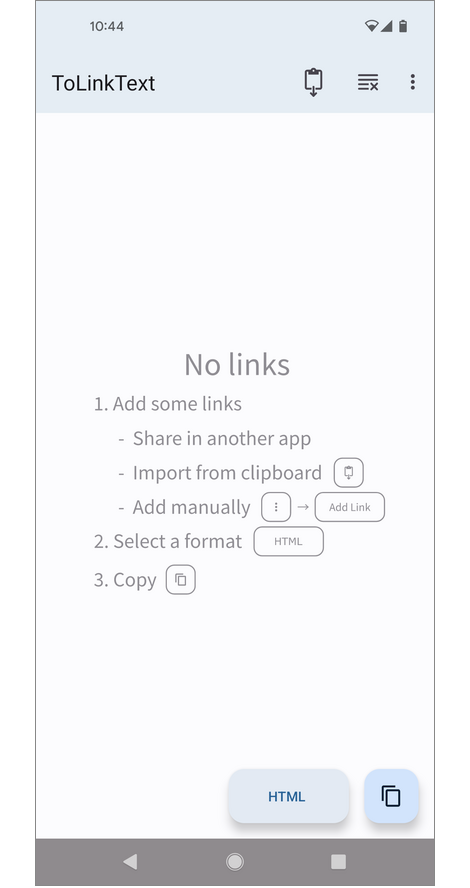
When this app is launched, the "ToLinkText" screen appears. At this time, The center area should show usage instructions, but it show a list of links when not empty.

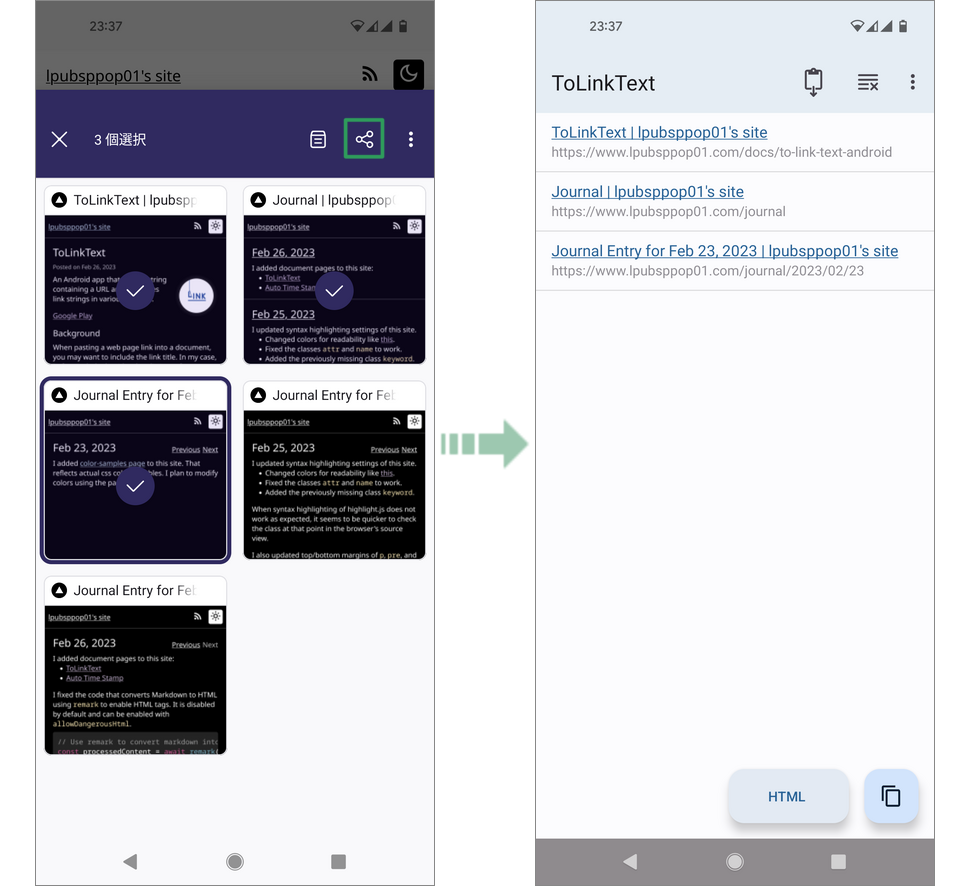
This app can also receive and launch URLs and HTML text shared from other apps, and I assume that this is the more common usage. In this case, it will show links on the center area, and will automatically start fetching titles from the web pages if they don't have.

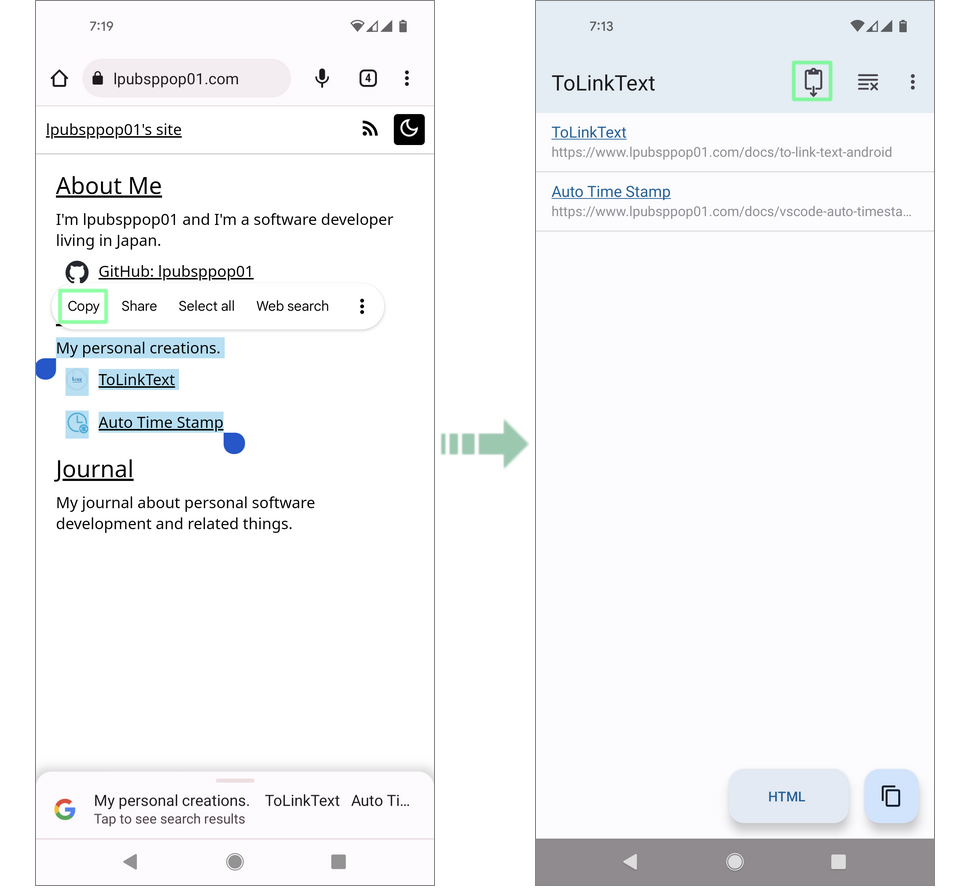
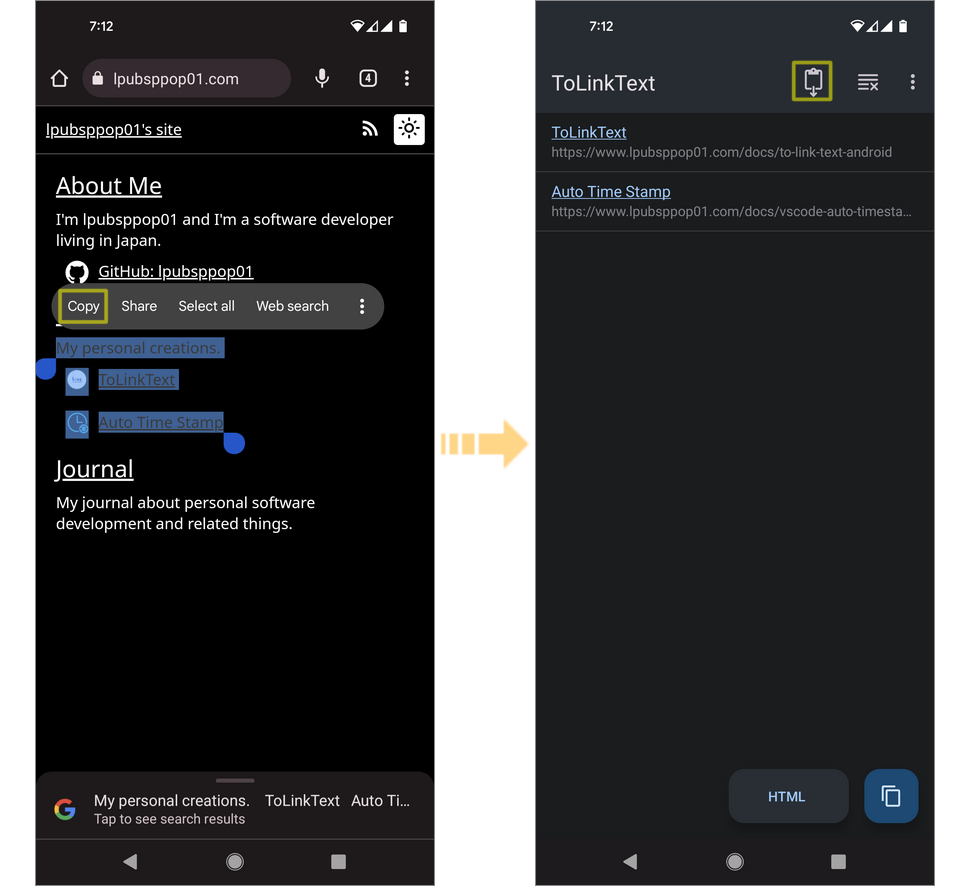
Another common use is to tap "Import from Clipboard" in the app bar to import from the clipboard.
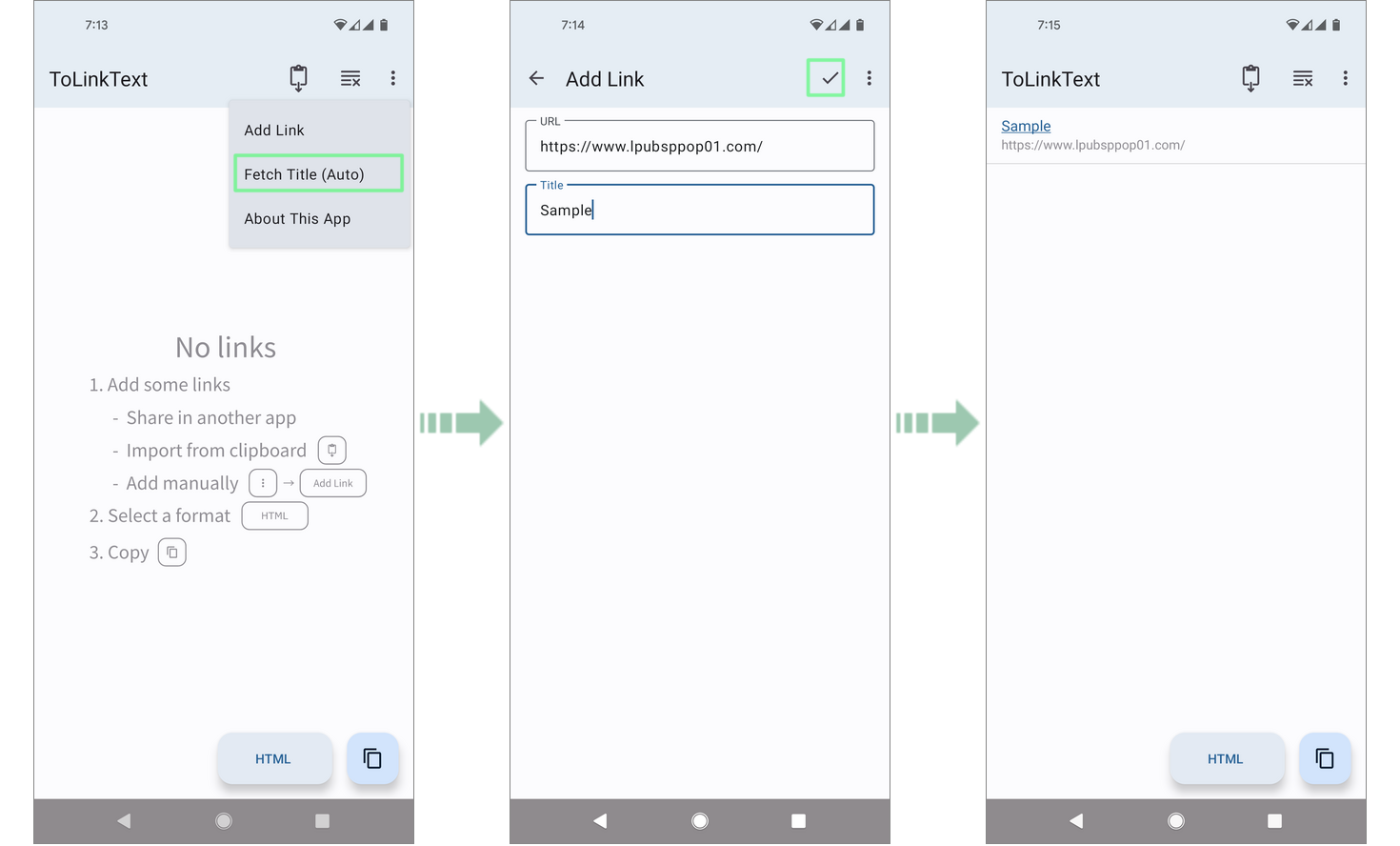
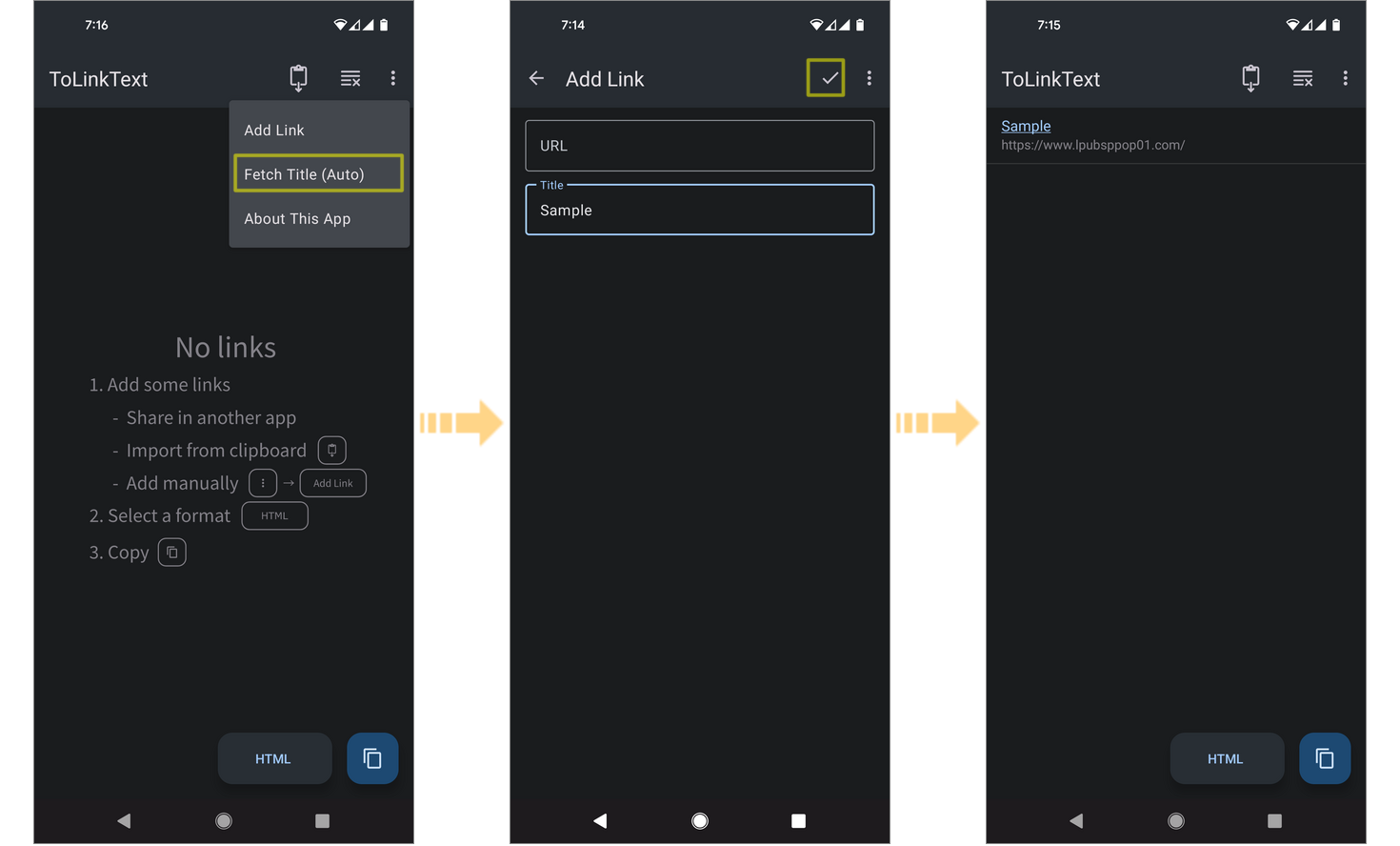
You can also go to the "Add Link" screen from the "Add Link" menu on the right side of the app bar, and enter the URL and title.
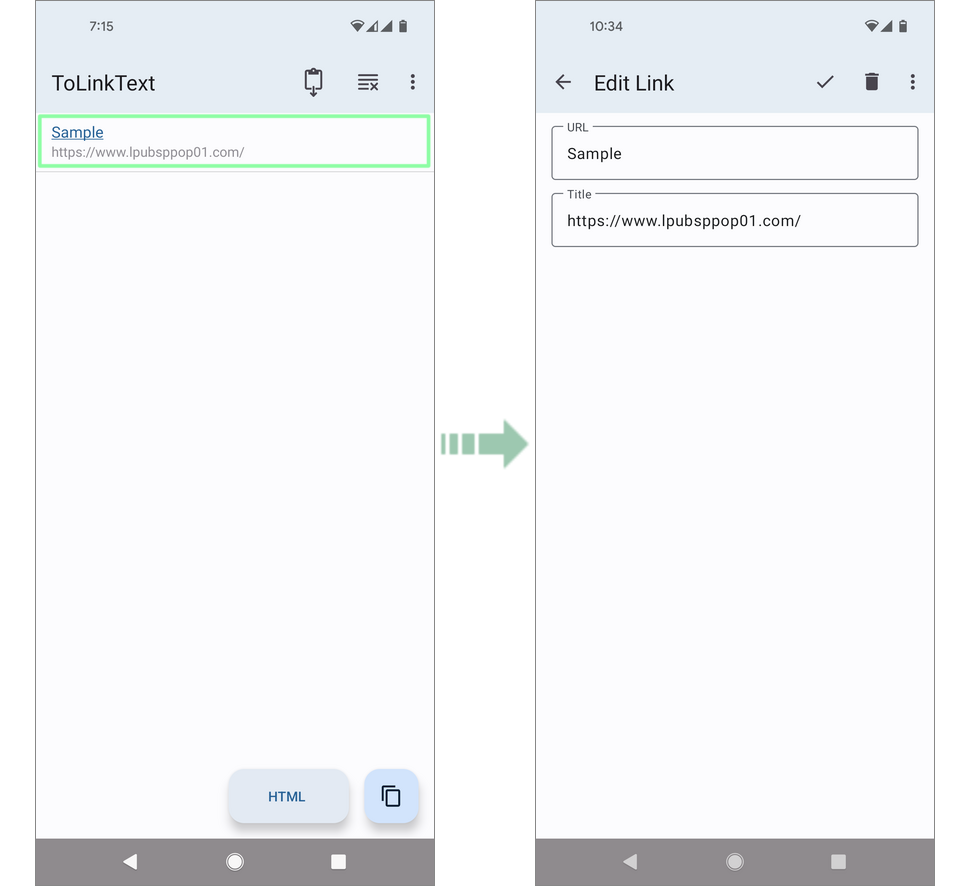
And also, if you tap the row, it will transition to the "Edit Link" screen. On "Edit Link" screen, you can edit or delete the link of the row. These add/edit/delete functions are intended to be used supplementarily.

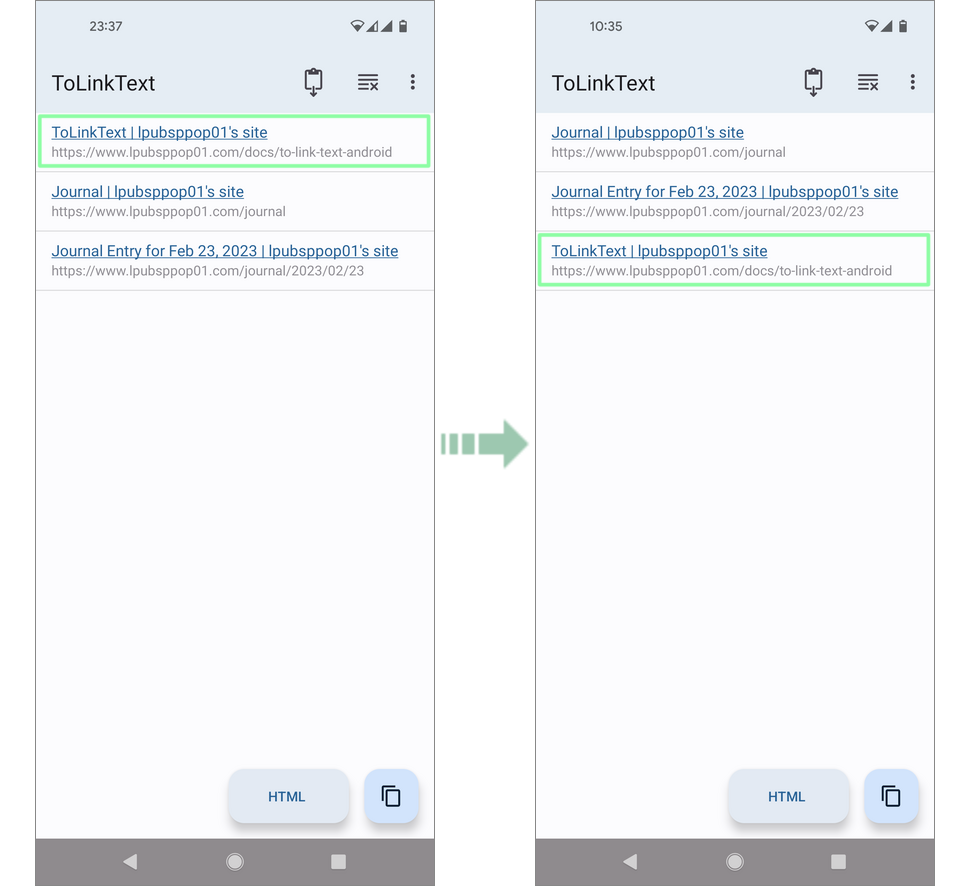
You can change the order of links by long-touch and drag.

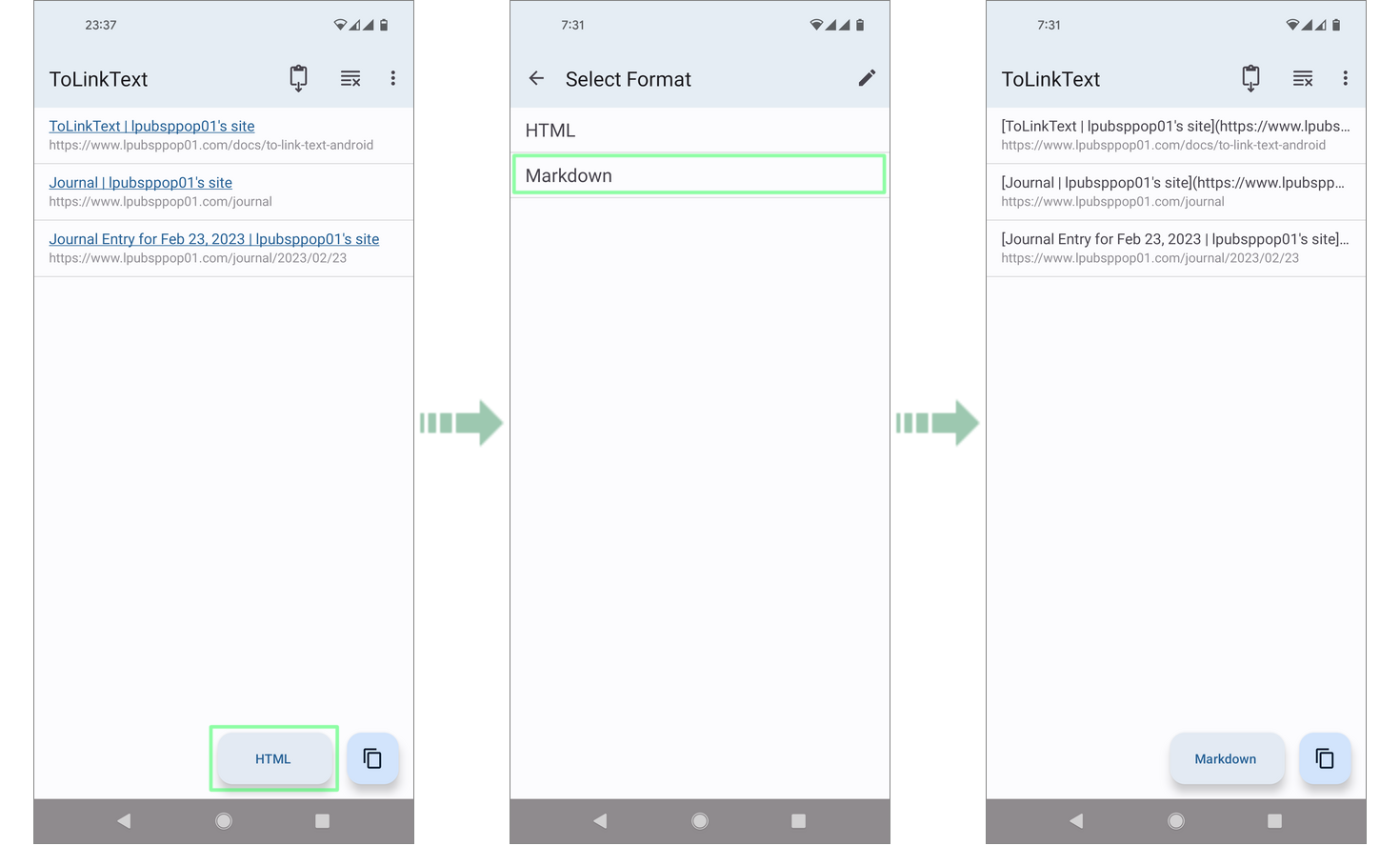
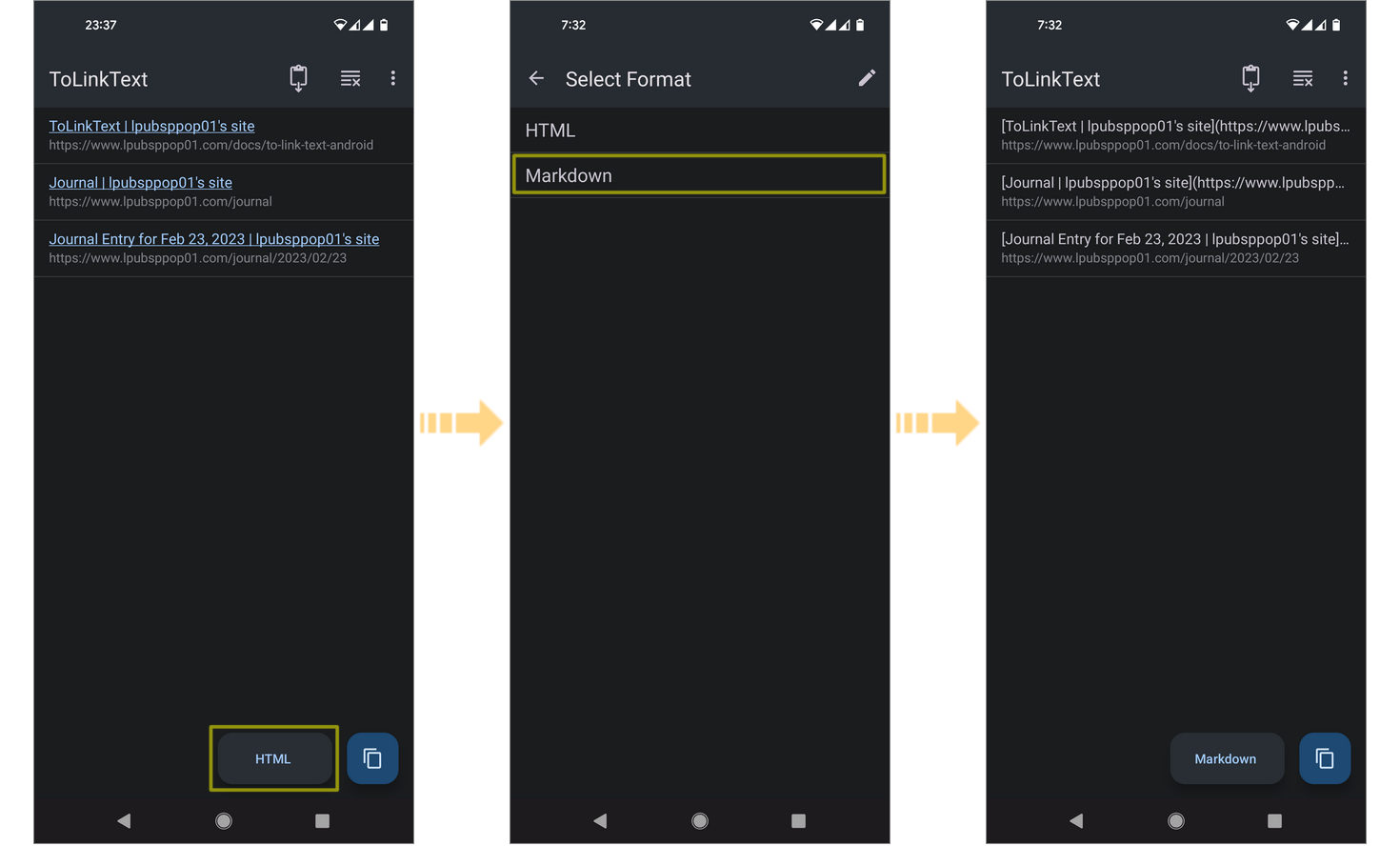
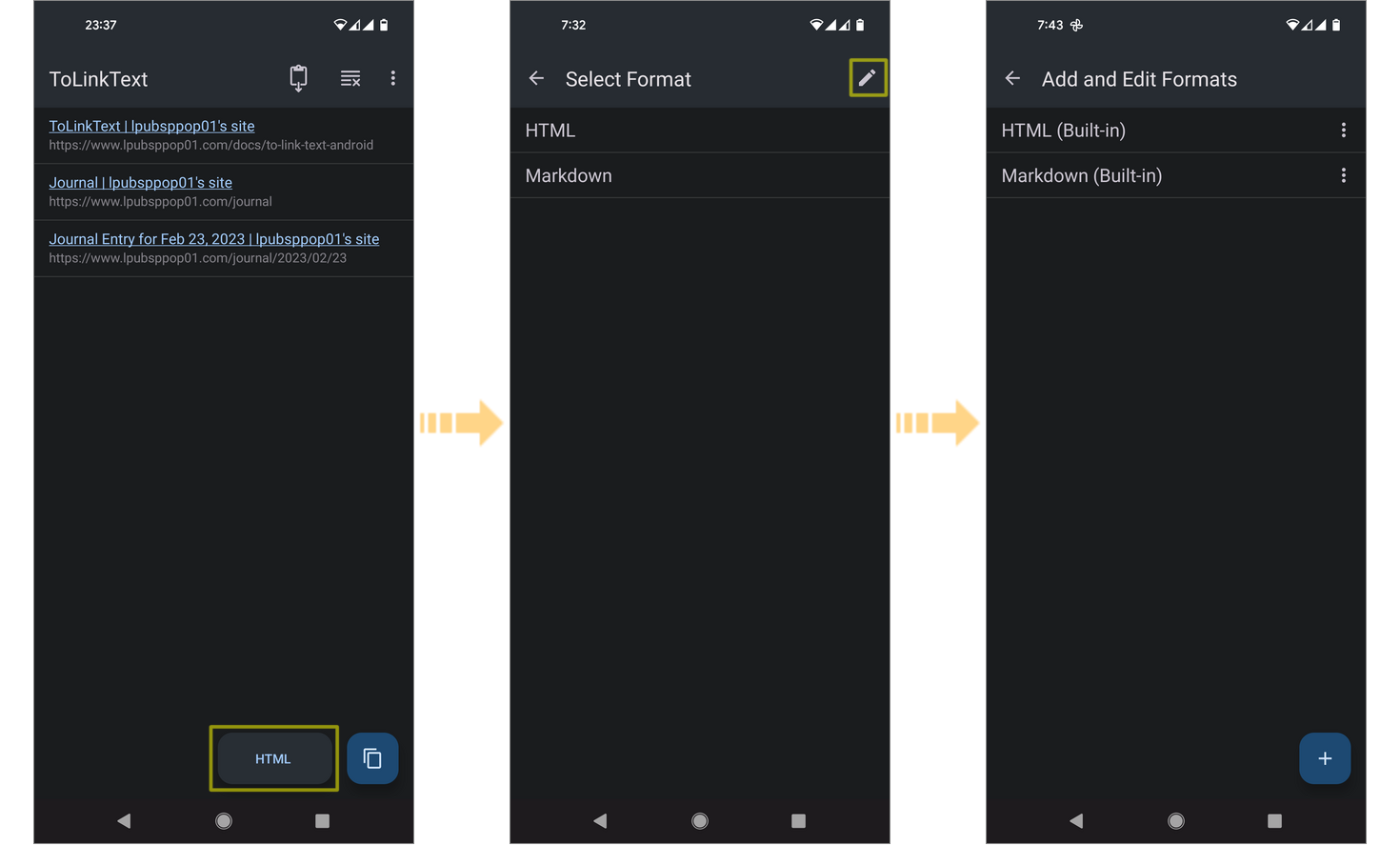
Once you have the links in your link list, choose a format. Tap the "Format" button to move to the "Select Format" screen and tap the desired format.
Tap the "Copy" button on the bottom right to output the link to the clipboard. Please switch apps and paste.
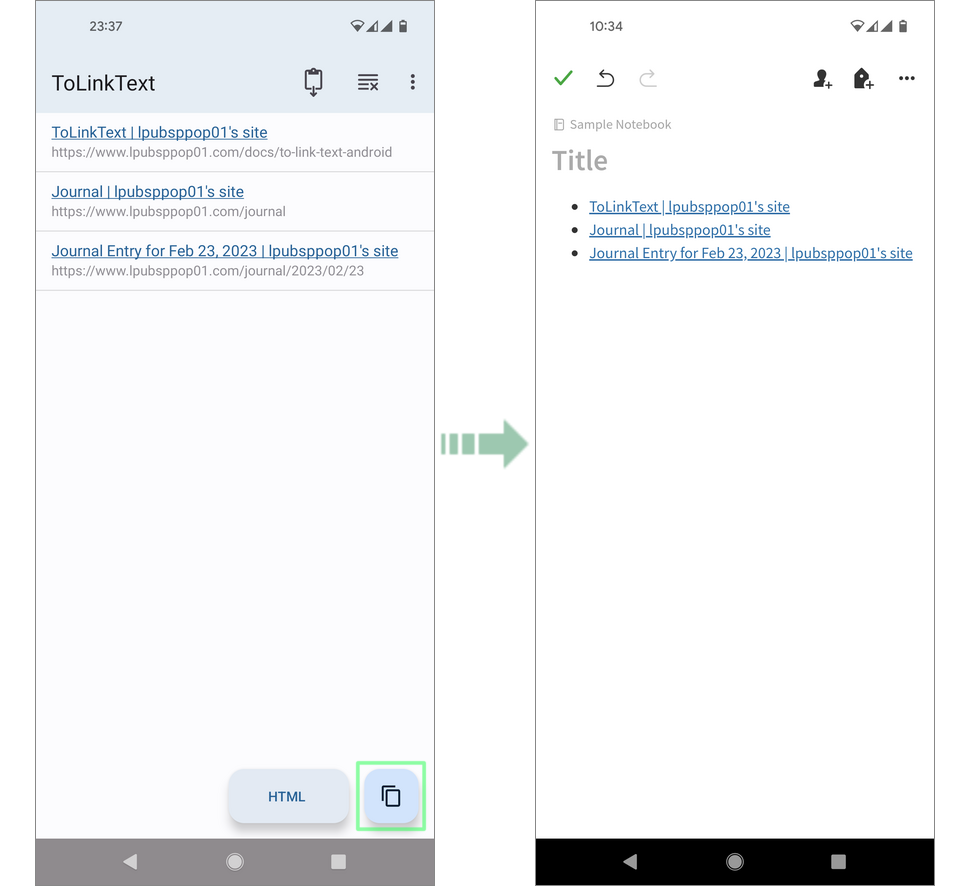
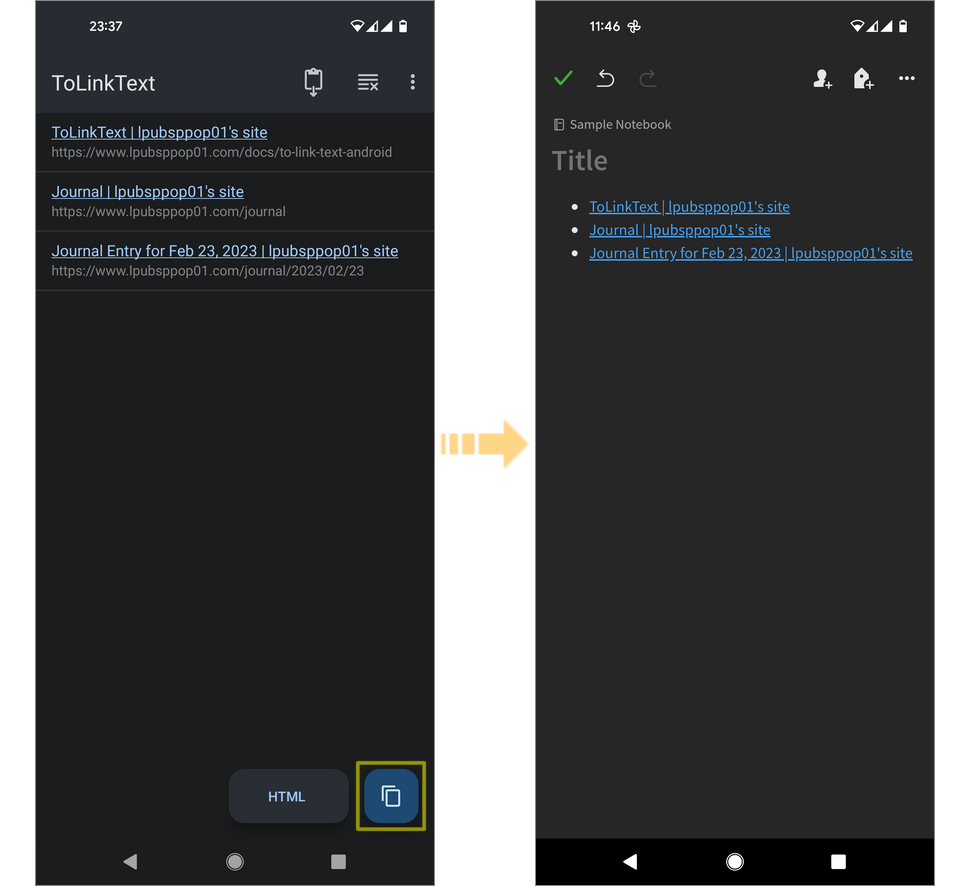
Set Title
As already mentioned, title fetching will start automatically when appropriate, or you can enter it when adding or editing a link. There are several other methods.
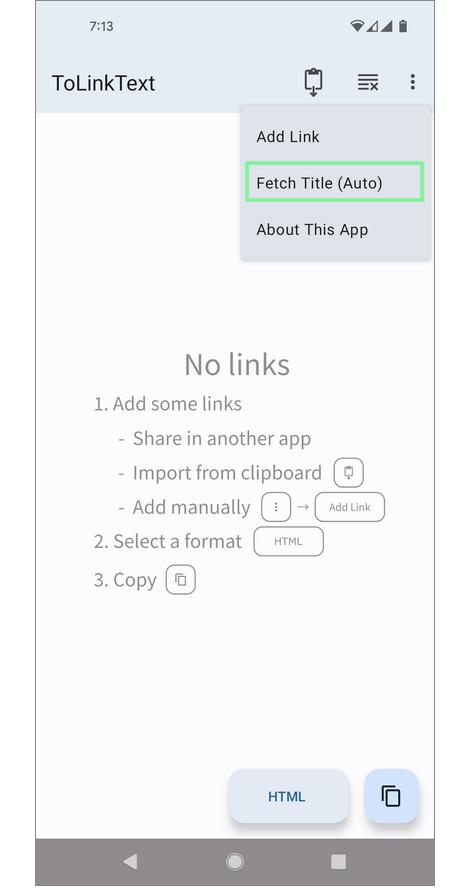
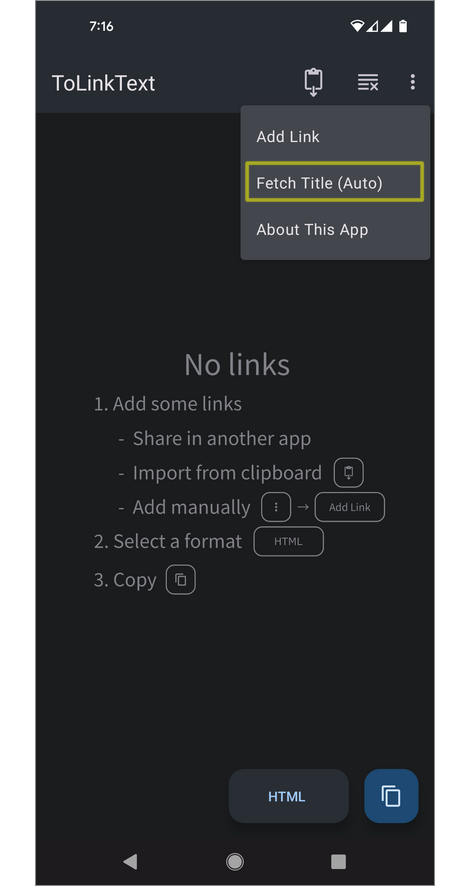
Select "Fetch Title (Auto)" from the right side menu of the app bar on the "ToLinkText" screen, You can manually start fetching titles from the web pages. The processing contents are the same as those that are automatically executed. This process is static scraping and is not guaranteed to succeed.
Select "Fetch Title (Auto)" from the menu on the right side of the app bar on the "Add/Edit Link" screen, Do the above process for a single target.
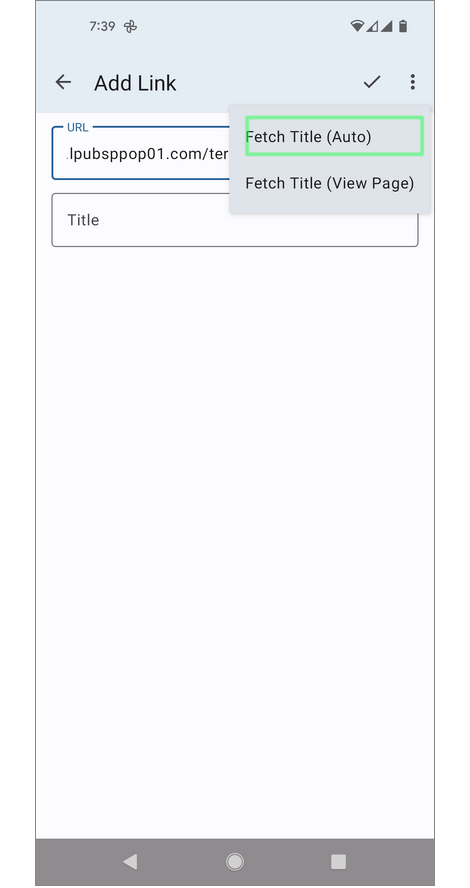
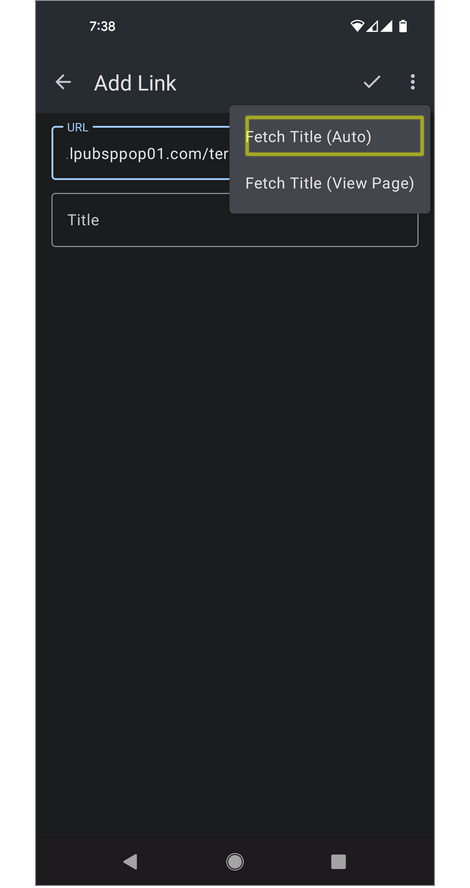
Select "Fetch Title (View Page)" from the menu on the right side of the app bar on the "Add/Edit Link" screen, transition to the "Fetch Title" screen and open the web page in the app. The title is detected when the web page has finished loading. Even if you transition to another page, the title is detected after loading, so you can also get the title after performing necessary operations such as login.
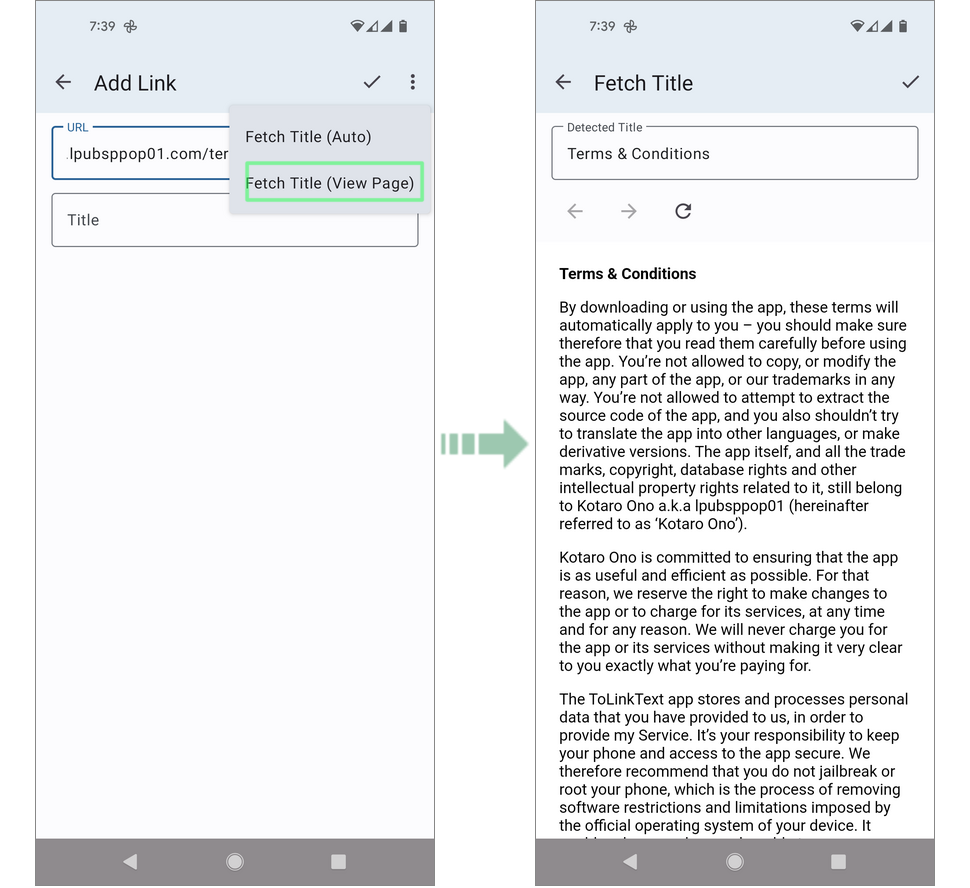

The authentication information on "Fetch Title (View Page)" is also shared with "Fetch Title (Auto)". Once authentication is completed, you can also fetch the title of the page that requires authentication with "Fetch Title (Auto)".
Add and Edit Formats
Tap the "Format" button on the first "ToLinkText" screen to transition to the "Select Format" screen, and then tap the "Edit" button on the app bar to transition to the "Add and Edit Formats" screen.
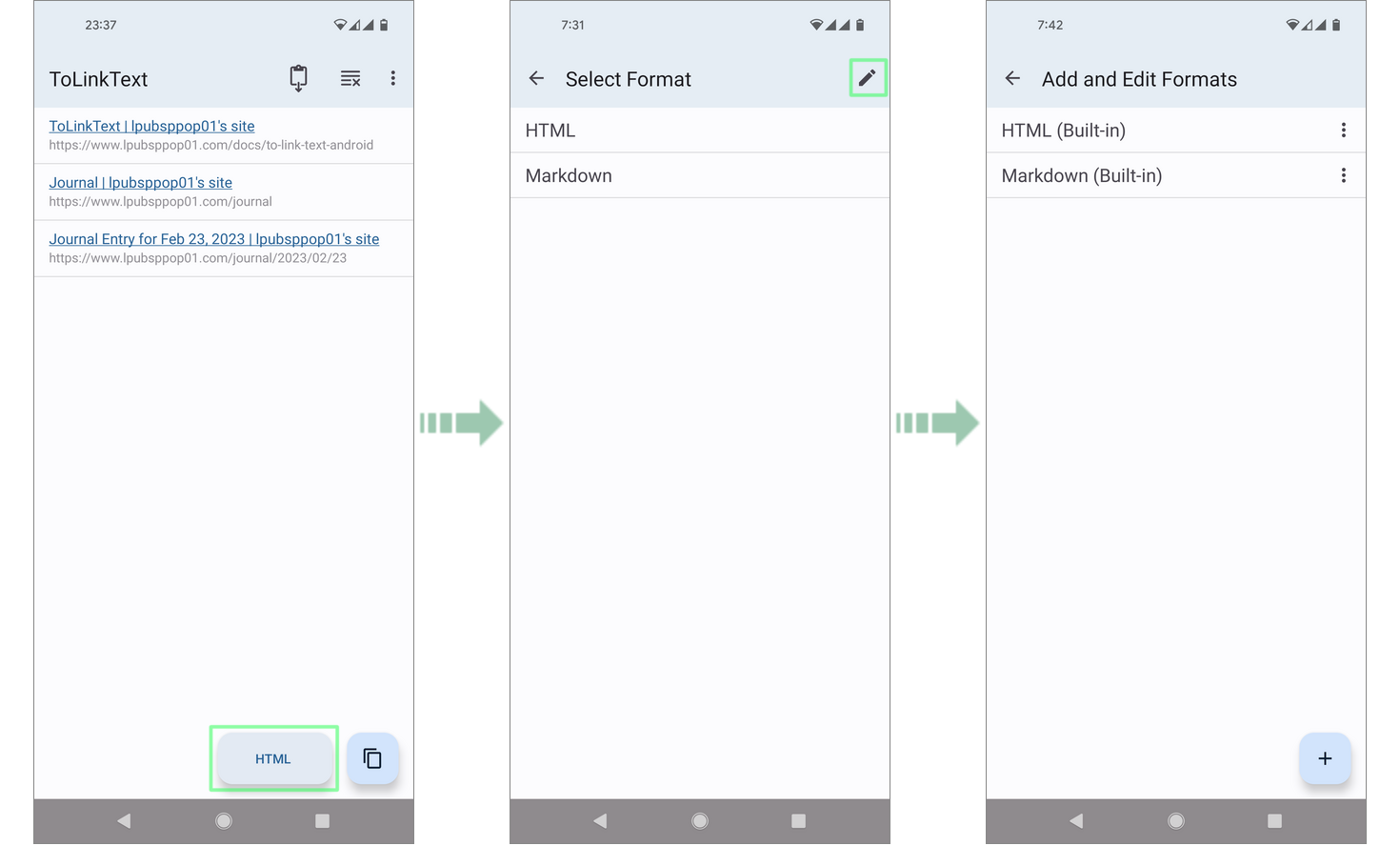
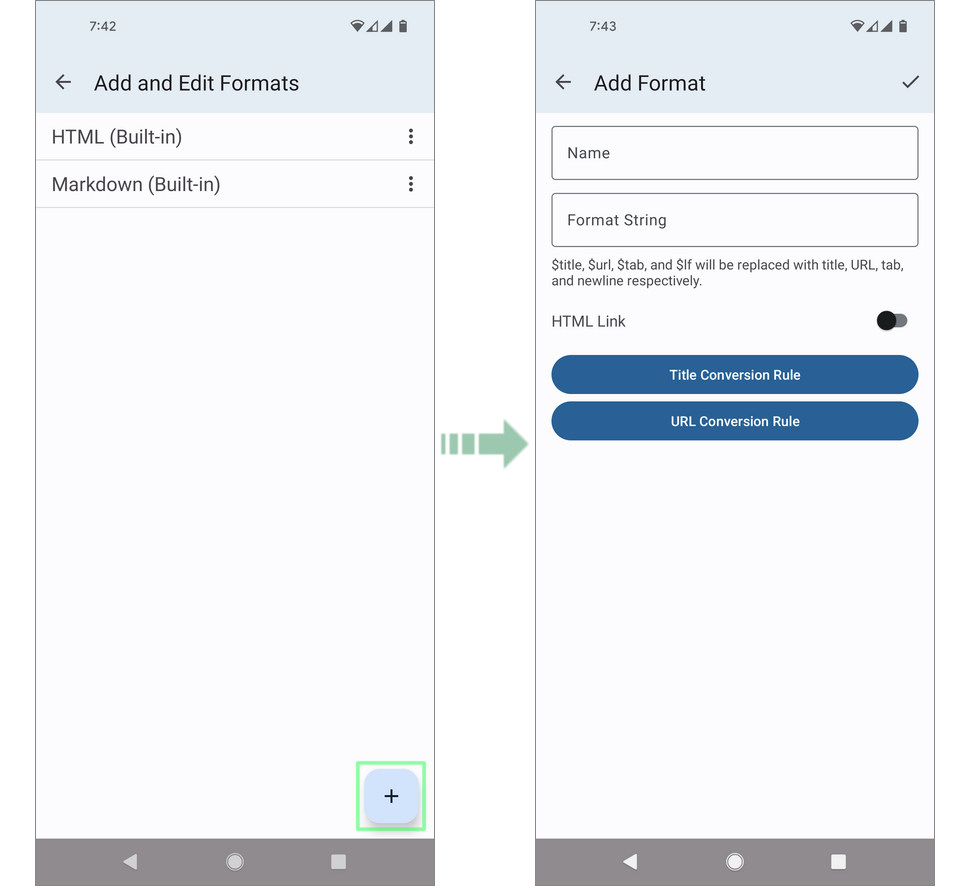
Tap the "Add" button on the "Add and Edit Formats" screen to transition to the "Add Format" screen.

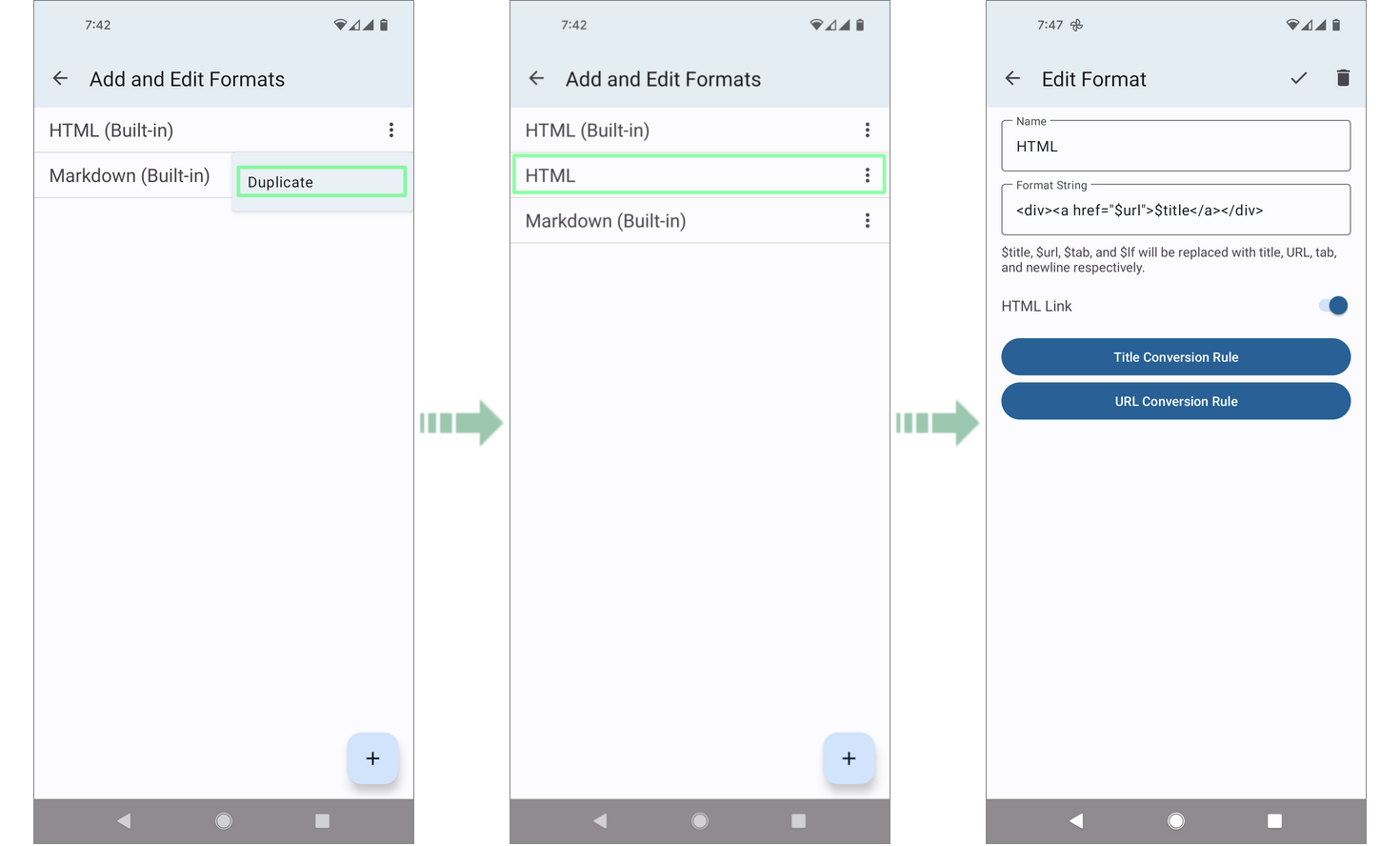
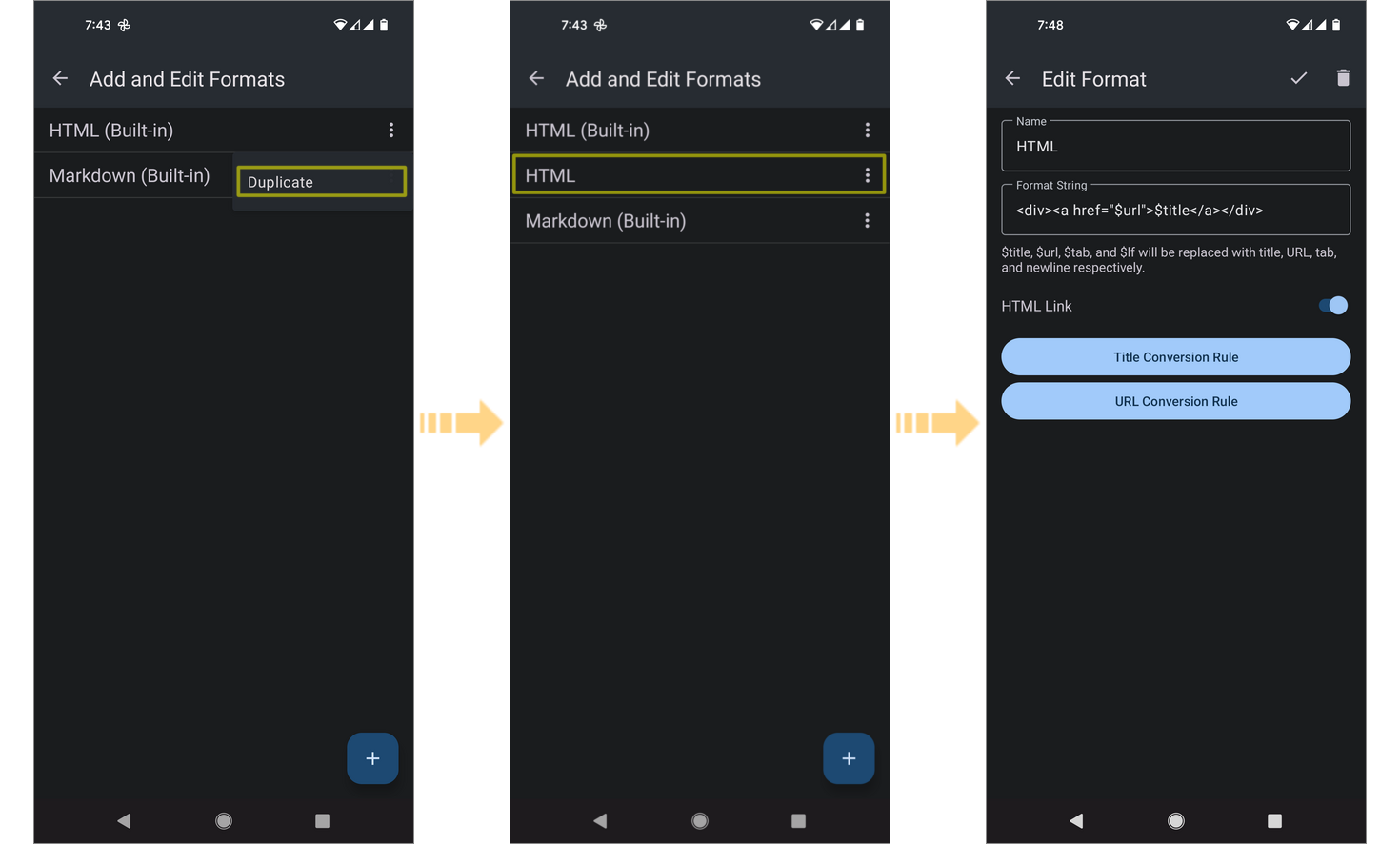
Tap the row on the "Add and Edit Formats" screen to transition to the "Edit Format" screen. You can duplicate an existing format from the menu on the right side of the row, so it may be easier to duplicate and edit than add. In particular, it does not support editing of bundled formats, so please do so.
As with the link list, you can change the order of formats by long-touch and drag.
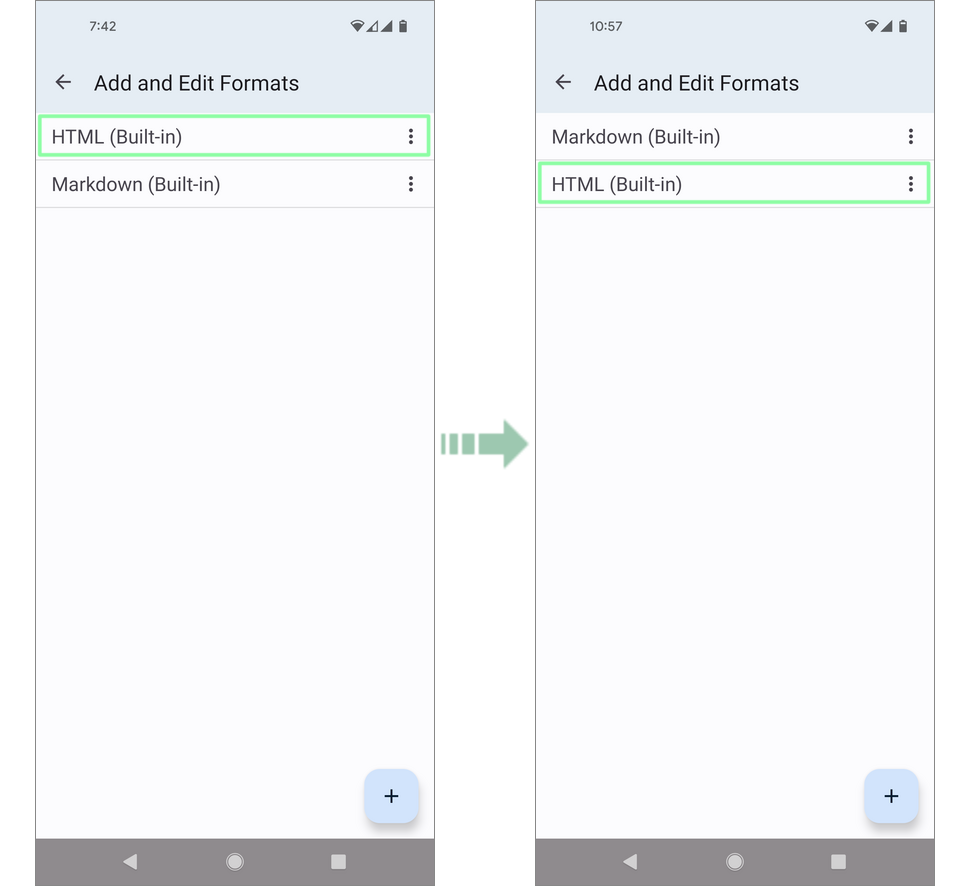

On the "Add/Edit Format" screen, you can edit the following:
- Name
- Format String
- HTML Link On/Off
- Title Conversion Rule
- URL Conversion Rule
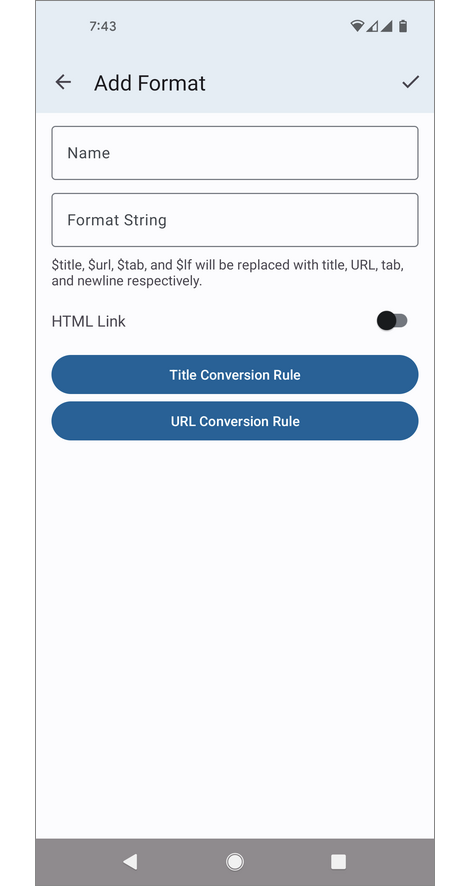
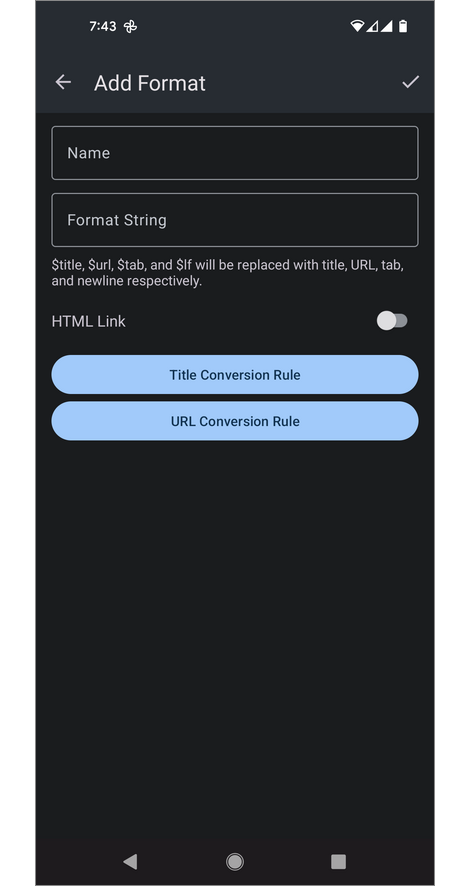
The "Name" is displayed on the "ToLinkText" screen, "Select Format" screen, etc.
The "Format String" will become a resulting link string by assigning a title and URL.
$title and $url will replaced on link generation.
The "HTML Link" is an attribute that links have. When the flag is ON, the "Format String" should be HTML string. Otherwise, the format is a text format such as Markdown.
The "Title Conversion Rule" and the "URL Conversion Rule" is conversion rules
that are applied before assigning each value to the "String Format".
For example, HTML encoding, escaping for []() on Markdown, etc.
Tap the buttons to transition to the "Title/URL Conversion Rule" screen.
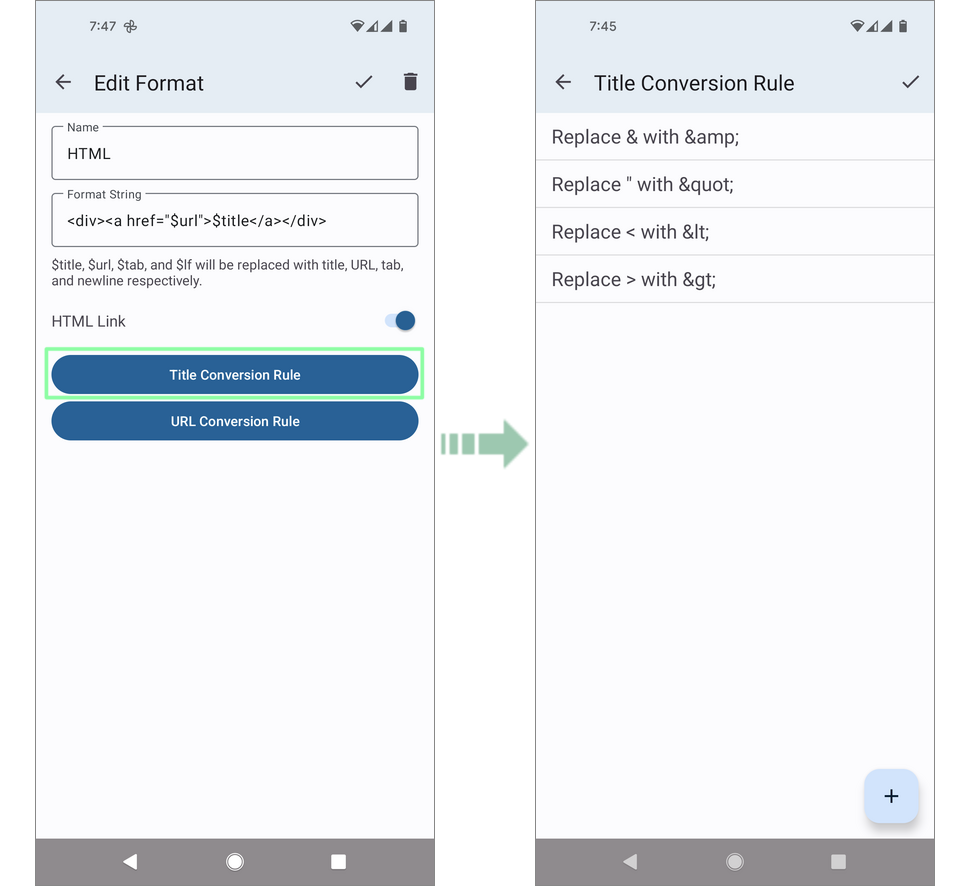

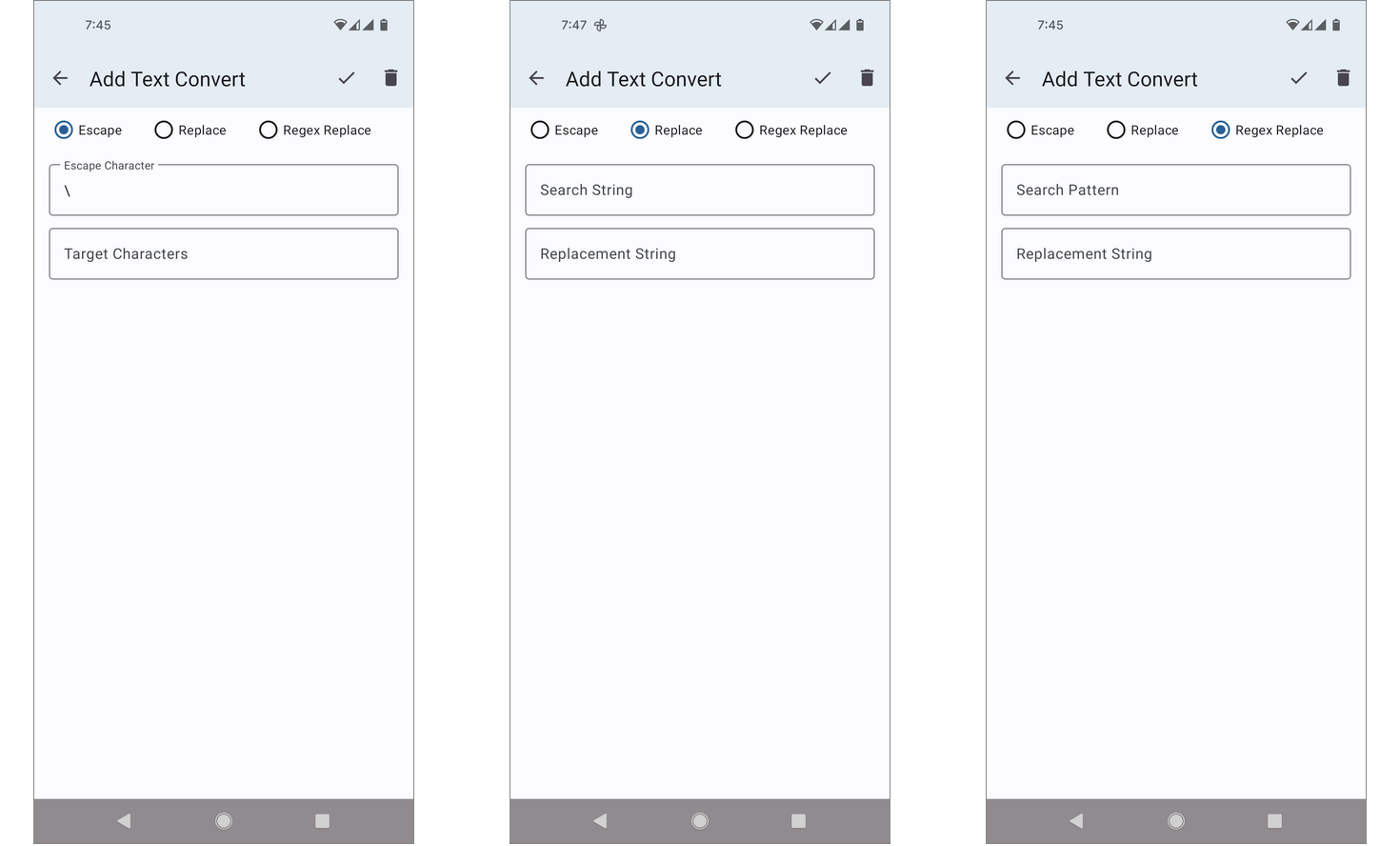
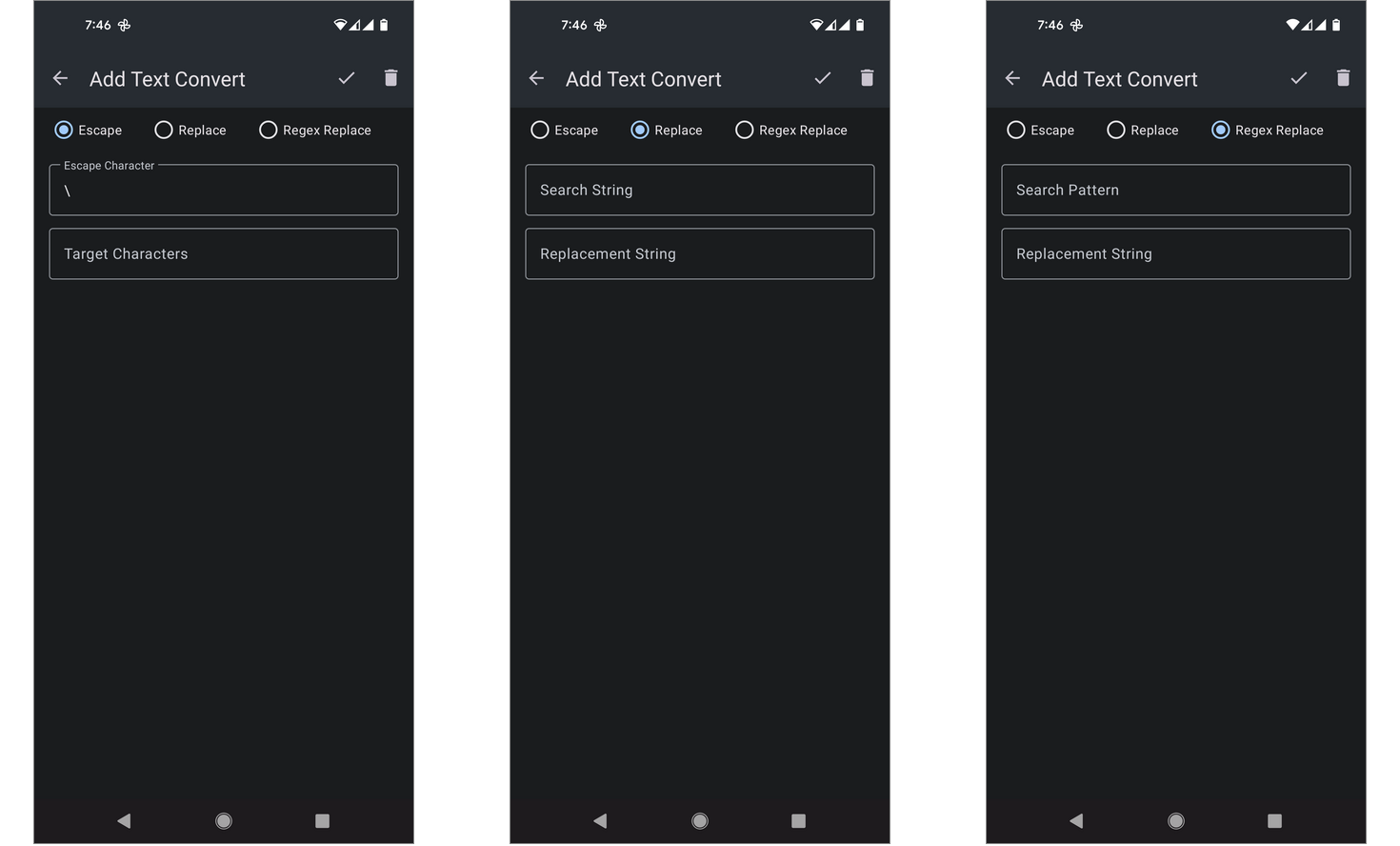
On the "Title/URL Conversion Rule" screen, tap the "Add" button to transition to the "Add Text Convert" screen, and tap the row to transition to the "Edit Text Convert" screen. As with the previous add/edit screens, both destination screens have almost the same features except whether the purpose is to add or edit.
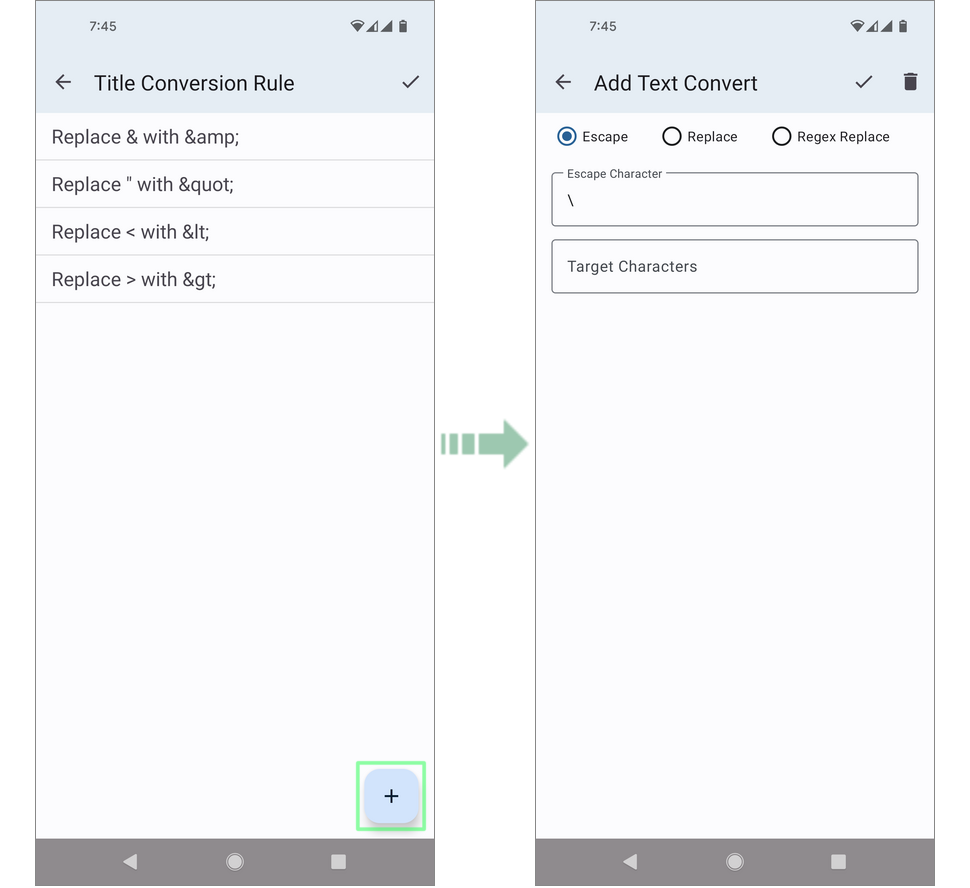
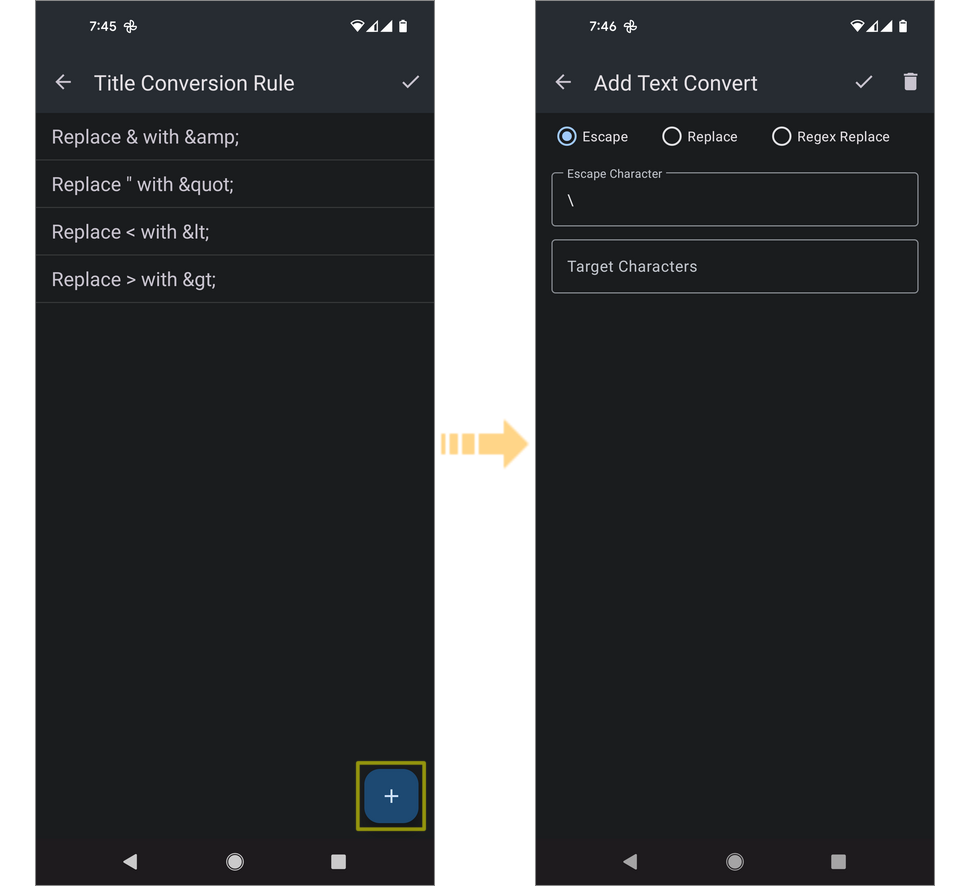
On the "Add/Edit Text Convert" screen, you can edit the following:
- Kind (Escape or Replace or Regex Replace)
- Escape Character (for Escape)
- Target Characters (for Escape)
- Search String (for Replace)
- Replacement String (for Replace)
- Search Pattern (for Regex Replace)
- Replacement String (for Regex Replace)